

1. Install the App
iPhone (iOS): Use the App Store link below to install the app.
https://apps.apple.com/cn/app/%E6%9D%A5%E5%9B%BEshow/id6738081177?l=en-GB
Android: Download and install the APK file directly.
https://drive.google.com/file/d/1jrkcrAqva_UK6zMhE9uCe-JpR-S08LoQ/view?usp=drivesdk
If the app does not work properly on your device, please contact us for support.
2. Transfer an Image to the E-Ink Tag
Open the app and tap “Start Image Transfer.”
Select an image from your device.
You can:
rotate or flip the image
adjust brightness and contrast
add text or drawings using the built-in drawing board
When you are satisfied with the image, tap “Transfer to Tag.”
Android Devices
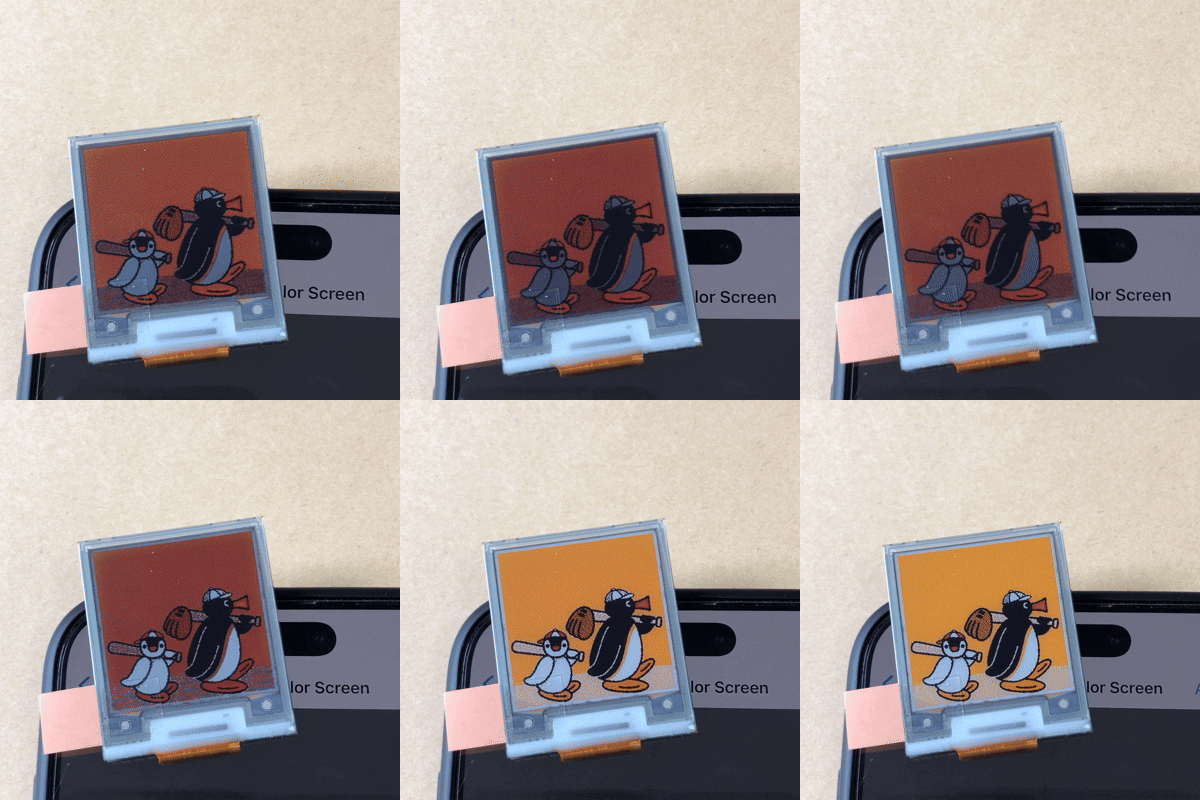
For Android devices, place the e-ink tag directly over your phone’s NFC sensing area. The transfer will start automatically once the tag is detected. On-screen prompts will guide you through the process.
3. Image History
After the transfer is complete, the image will automatically be saved in the app history.
Troubleshooting
If you see rolling black lines or the image does not display correctly, the tag may not be receiving enough NFC power from the phone.
Try the following:
Make sure the tag is aligned with your phone’s NFC sensing area
(NFC antenna locations vary between phone brands and models.)
Remove your phone case if possible.
Ensure there are no metal objects between the phone and the tag.
If the issue continues, please contact customer support:
contact@shellrus.com
Share: